

Easy Thanksgiving STEM Coding Activities for Kids
Hey, just so you know … This post includes affiliate links. That means if you use them to make a purchase, I may earn a commission. You can read my full affiliate disclosure HERE.
Looking for some fall STEM activities for your homeschoolers? The holiday season is the perfect time to blend the festive spirit of Thanksgiving with the educational wonders of STEM.
One of the great things about STEM is how easy it is to connect to the real-world. Annual holidays and celebrations provide a great source of inspiration for seasonal homeschool activities!
Take the Thanksgiving Day holiday: you're probably really familiar with A Charlie Brown Thanksgiving (featuring the Peanuts’ characters created by Charles Schultz), and the Macy’s Thanksgiving Day parade. In this post, I'm excited to share two engaging and easy-to-implement coding activities you can add to your lesson plans this time of year. They're designed specifically for kids, and inspired by these two seasonal, iconic events.
Your older kids will be able to jump right in and try these Thanksgiving activities (even if they're beginners!), as I've included step-by-step instructions. Younger kids should be able to try them with some assistance. These STEM activities are a great way to spark curiosity and creativity while celebrating the Thanksgiving season.
As a homeschooling parent, you have a perfect opportunity this Thanksgiving for hands-on exploration and learning. If you think your kids would love to explore some online coding and modeling software, have them pull up a chair and follow this post to enjoy themed STEM activities!
STEM education forms the foundation for critical thinking, problem-solving, and innovation. By infusing these principles into a Thanksgiving STEM challenge for your kids, we not only create an enjoyable learning experience but also cultivate skills that extend far beyond the coding screen.
What is STEM?
STEM stands for Science, Technology, Engineering, and Mathematics. Traditionally, science and mathematics have been taught as isolated subjects devoid of real-world connections. STEM education strives to put these subjects into authentic contexts and combine them with concepts from technology and engineering so that students are better prepared for life in a 21st century full of gadgets and gizmos.
The Scratch Programming Language
The STEM challenges in this blog post are going to utilize both Scratch and Tinkercad.
Scratch is a blocks-based programming language developed by the Lifelong Kindergarten Group at the Massachusetts Institute of Technology. It was designed specifically to help kids of all ages who are beginners learn to program.
Many find programming challenging because it requires learning how to identify the detailed set of steps needed to solve a problem (called an algorithm) and learning an entirely new language, complete with its own vocabulary, grammar, and often obscure punctuation.
Trying to learn more than one new thing at a time can lead to cognitive overload – the sense of being overwhelmed with too much at once. Scratch helps to reduce or eliminate this cognitive overload by allowing the learner to focus on solving the problem without having to worry about the details associated with the language itself.
Being blocks-based, instructions in Scratch are snap-together, color-coded puzzle pieces. All the commands are organized into categories that are always available down the left edge of the screen. There’s no need to remember keywords or where those pesky semicolons are supposed to go.

Scratch is also a graphical coding environment. The action takes place on a stage that can have multiple backdrops and animated characters called sprites. Instructions are dragged into and assembled in a code-editor window, and they control everything that happens on the stage.
Scratch can be used in an online coding environment, or it may be downloaded and installed on your own computer. Accounts are free, and there is an active community of Scratchers with whom to share ideas and projects. There are also numerous tutorials available from the Scratch website and elsewhere on the Internet.
Creating a Thanksgiving Dinner Scene in Scratch
Our first Thanksgiving STEM activity focuses on the technology aspect of STEM by letting students create a Thanksgiving Day feast in Scratch reminiscent of the dinner scene in Schultz’s TV classic.
After creating a new project in Scratch, the first step is to choose a backdrop. There’s an icon in the lower right corner that allows you to choose a backdrop from the library included with Scratch, or you may upload a picture you’ve taken yourself or an image you downloaded from another location. However, there may not be one suitable for this project, so your kids might want to draw their own backdrop.
Hover over the “Choose a backdrop” icon and select the paintbrush to open the editor.
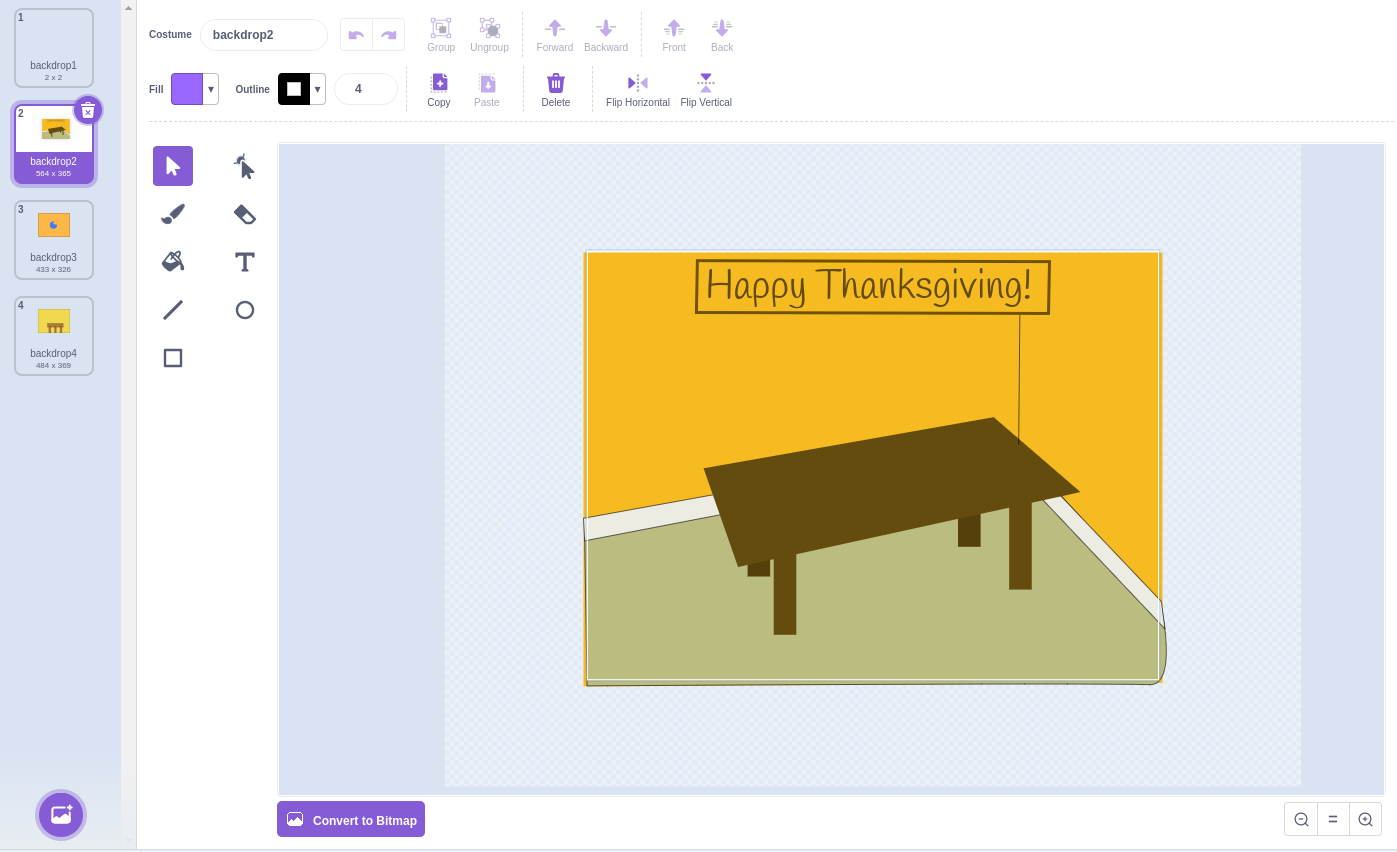
The Scratch backdrop editor (which is also used for editing sprites) has many of the tools you would expect from a simple paint program. You can create a table using primitive shapes like lines, rectangles, or circles. These may be combined to make more complex polygons.
There’s even a reshape tool that may be used to add and move the nodes associated with a shape. With this, you can make a two-dimensional rectangle into a parallelogram to make it appear to be 3D. In engineering and architecture, this is called an isomorphic perspective.
The next step is to add some dishes to the table. The Scratch sprite library includes several food items, or again you can upload or draw your own. Pixabay is a good site for finding royalty-free images that you can download and include in your projects.
In the area below the stage, you may adjust the properties of each sprite, including its size and direction (e.g., rotation) so it appears perfectly positioned in the scene. You might also decide to add some decorative items like a pilgrim’s hat, candlesticks, pumpkin pie, or a turkey centerpiece.

So far, the scene is static. To make it more interesting, you can add code to animate the dishes and decorations. Each sprite has its own code area, so each may be programmed independently. Start with the “when green flag clicked” instruction from the Events category.
Instructions attached to this piece execute when the user clicks the green flag above the stage. By adding a “forever” loop under the “when green flag clicked”, you create a sequence that will continue indefinitely (or at least until the user presses the red stop sign above the stage).
Explore the other categories for instructions you might use to animate each sprite. For example, you could use a “turn right (10) degrees” instruction from the Motion category to rotate the sprite. By default, Scratch is configured to update the stage 30 times each second. This is approximately the same frame rate used in movies, television shows, cartoons, and video games to produce what we perceive as natural motion. You may add a “wait (1) seconds” instruction from the Control category to slow down the animation if you wish (obviously, you may set the delay to any value, even fractions of a second).
Finally, Scratch supports sound and has a library of effects and background tracks. These may be added to individual sprites or to the backdrop.
The Sounds category contains the instructions for playing a sound in the program. For a short sound effect, you should probably use the “start sound” instruction. For a soundtrack that plays in the background while the program is running, you should use the “play sound until done” instruction inside a “forever” loop.
As their names suggest, one starts playing the sound but does not wait for it to finish before moving to the next instruction. The other plays the sound completely before continuing.
Scratch makes it easy to experiment with new instructions just to see what they do and how they work. Let’s say you want a sprite to move back and forth across the stage. If you put a “move (10) steps” instruction from the Motion category into a “forever” loop, the sprite will move, but it will stop moving when it reaches the right edge. Try the following and see what happens!

Programming is all about trial and error, so don’t be afraid to experiment in this dinner table challenge. I hope your kids love this fun activity!
Tinkercad for Modeling
Another free online tool is Tinkercad, which we'll use in our second Thanksgiving STEM project.
Tinkercad is created by Autodesk, the same company that makes Autocad, a powerful 2D and 3D computer assisted design (CAD) application widely used by engineers and architects.
Tinkercad has individual modules for 3D modeling, virtual electronic circuits, and realistic physics simulations. For our second project, we’ll use the 3D modeling module to create floats for our own Thanksgiving Day parade.
After creating an account and signing into Tinkercad, press the Create button and choose 3D Design from the popup menu.

You’ll be presented with a surface called a workplane. Think of this as the desk or table on which you will create your model.

On the right side of the Tinkercad screen, you’ll find a collection of 3D shapes. Some of these are primitives like cones, cylinders, and rectangular prisms. Others are pre-composited shapes like stars, trees, fences, and so on.

Tinkercad works by adding or subtracting shapes. To make a house, you would start with a rectangular prism and position a triangular prism or half cylinder on top for the roof.

The two figures that are shaded gray are used to carve a shape out of another shape. For example, to create a wall with a door and a window, you would start with a rectangular prism stretched wide and thin to make a wall, then you would use the gray figures to subtract two rectangular prisms from the wall to make the door and window.
This image shows how to position the “hole” shapes relative to the “solid” shape.

To finish the process, hold down the shift key and click on each of the three shapes. Then use the Group icon (or press Ctrl-G) to combine these items together. The result is shown below.

Using these techniques to position, add, and subtract shapes, you can create complex 3D models to represent various floats and balloons like those seen in the Macy’s Thanksgiving Day parade.
Start with some thin cylinders (or maybe the Tube shape) to serve as wheels, then add a solid platform on which you can build.

As with Scratch, feel free to experiment with the various tools in Tinkercad. The squares on the corner of the shapes allow you to resize and reposition the shape. If you click on a shape, hold down the shift key, then click on another shape, you can then group them or align them. The cube in the upper left corner lets you rotate your view to see the underside or back of your design. You may also use the right mouse button to rotate the view.
Here’s a sample of what you might be able to create:

It can take some time and practice to become familiar with working with objects in three dimensions, especially when all the manipulations are done in a two dimensional space. However, spatial visualization is a valuable 21st century skill, even for those not interested in pursuing a career in engineering (can you see the similarities between Tinkercad’s 3D modeling and the instructions that come with ready-to-assemble furniture kits?).
Tinkercad is a bit like having an unlimited collection of toy construction bricks, but with the extra ability to fabricate new pieces when the exact thing you need isn’t available. Tinkercad models may be exported and printed if you have access to a 3D printer. Local makerspaces and some public libraries have 3D printers that are available for anyone to use.
Enjoy These Fun Thanksgiving STEM Activities
I hope I’ve inspired you to explore Scratch and Tinkercad, as they're a fun way for your kids to create programs and designs associated with the Thanksgiving Day holiday. These are fantastic free tools designed specifically to let students experiment and learn fundamental STEM concepts, and your kids will have so much fun using them during Thanksgiving break.
Did you notice, too, how much applied math (especially geometry) there is in both Scratch and Tinkercad? Connecting to science requires you to be a little more intentional, but Tinkercad’s circuits module lets you construct virtual electronic circuits that come to life as simulations that operate just like the real thing. What about using Tinkercad’s 3D Design module to create models of atomic structures in chemistry or the SimLab module to “see” physics?
Regardless, I hope your kids have a great time learning how to use these tools for your STEM projects! If you want more ideas like these, or if you need more guidance than was provided in this post, you might be interested in a subscription to the Excalibur Solutions STEM Academy. There are over 600 lessons designed for students from around 3rd grade elementary students through high school. They are grouped into projects focused on technology and engineering – the T and E in STEM – that teach students computer programming, electronics, 3D design process, and more. Our free 30-day trial is the perfect way to try full access to everything a paid subscriber gets.
As a special incentive for Techie Homeschool Mom readers, we’re offering a 15% discount each month for the first 6 months of your subscription! Click here and enter code TECHIE15 at checkout.

Happy Thanksgiving!
About the Author

Robert Walsh
Robert Walsh, the founder of theExcalibur Solutions STEM Academy®, is a former mathematics teacher who has also worked as a hardware technician, an IT director, a trainer, a programmer, a software tester, a technical writer, and a business owner. He has presented at numerous software development and testing conferences and has had multiple articles published on these subjects. He holds a Bachelor of Science degree in Secondary Mathematics Education as well as a Master of Education degree in STEM Leadership. His unique blend of skills in education, technology, and business allows him to communicate effectively with people with diverse backgrounds.
Robert thoroughly enjoys sharing his knowledge and experience with others and hopefully inspiring them to become computer scientists and engineers. His favorite part of his job is creating new projects in a wide assortment of different technologies. He particularly enjoys finding ways to do the same or a similar task in several programming languages or using various kinds of hardware and equipment.
Related Posts
- Commit to Coding in Your Homeschool with this Easy Solution
- 15+ STEM Toys that Teach Coding
- Which STEM Curriculum Should I Use for Homeschooling?

Want some techie homeschooling tips and inspiration delivered to your inbox? Sign up here for weekly-ish emails from me.
Techie Homeschool Mom is a participant in the Amazon Services LLC Associates Program, an affiliate advertising program designed to provide a means for sites to earn advertising fees by advertising and linking to Amazon.com. You can read my full affiliate disclosure HERE.